

Watch the demo
Prerequisites
- Slack workspace connected (see Connecting Slack)
- Permission to create and save templates in your LithoBlocks organization
- A test channel or your own Slack user ID
1
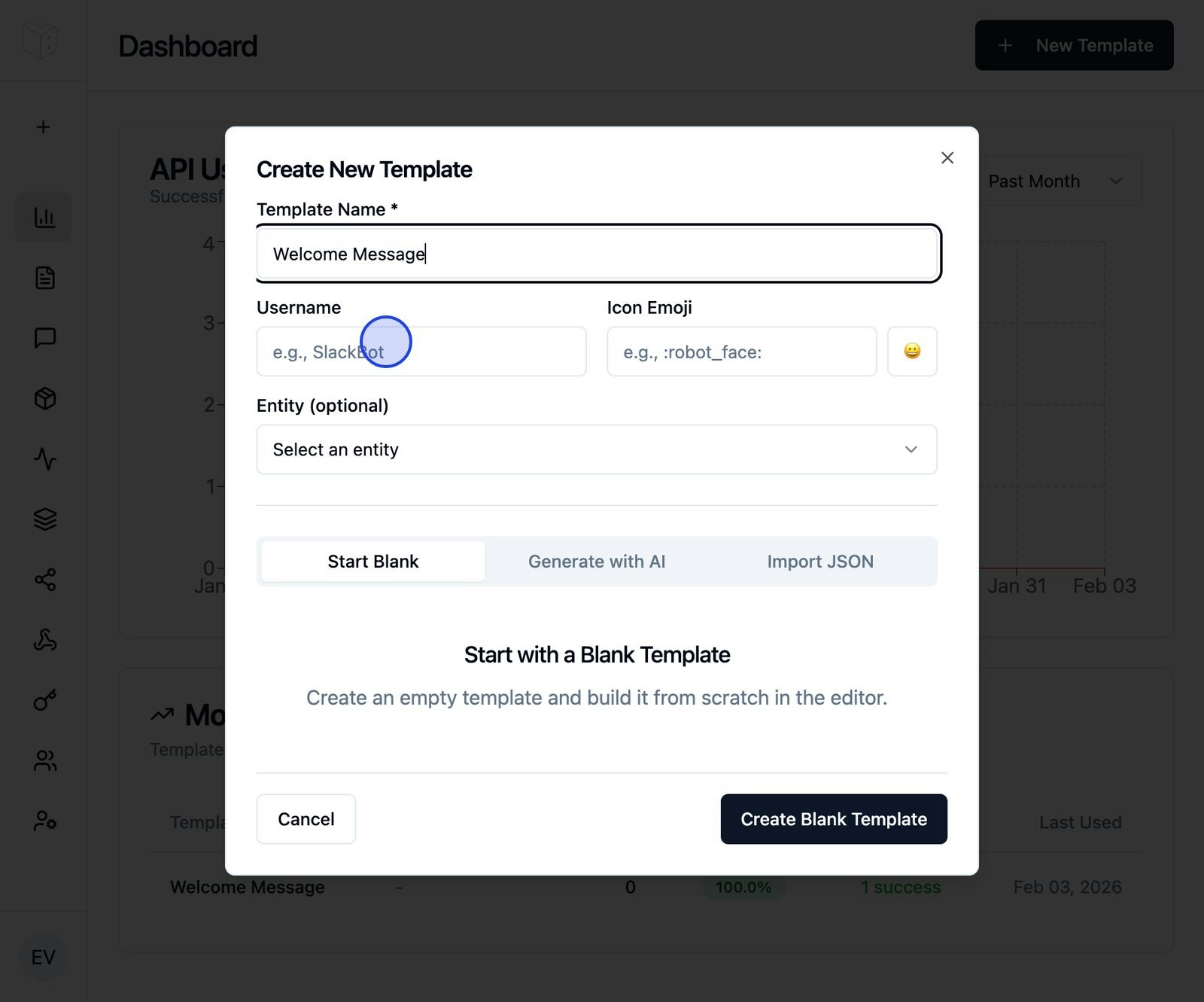
Create a new template
- Navigate to Templates in the sidebar
- Click Create Template
-
Enter a name:
Welcome Message -
Click Create
2
Add your first block
- In the Block Toolbox above the canvas, find the Header block
- Click it to add it to your template
-
In the text field, type:
Welcome to the Team!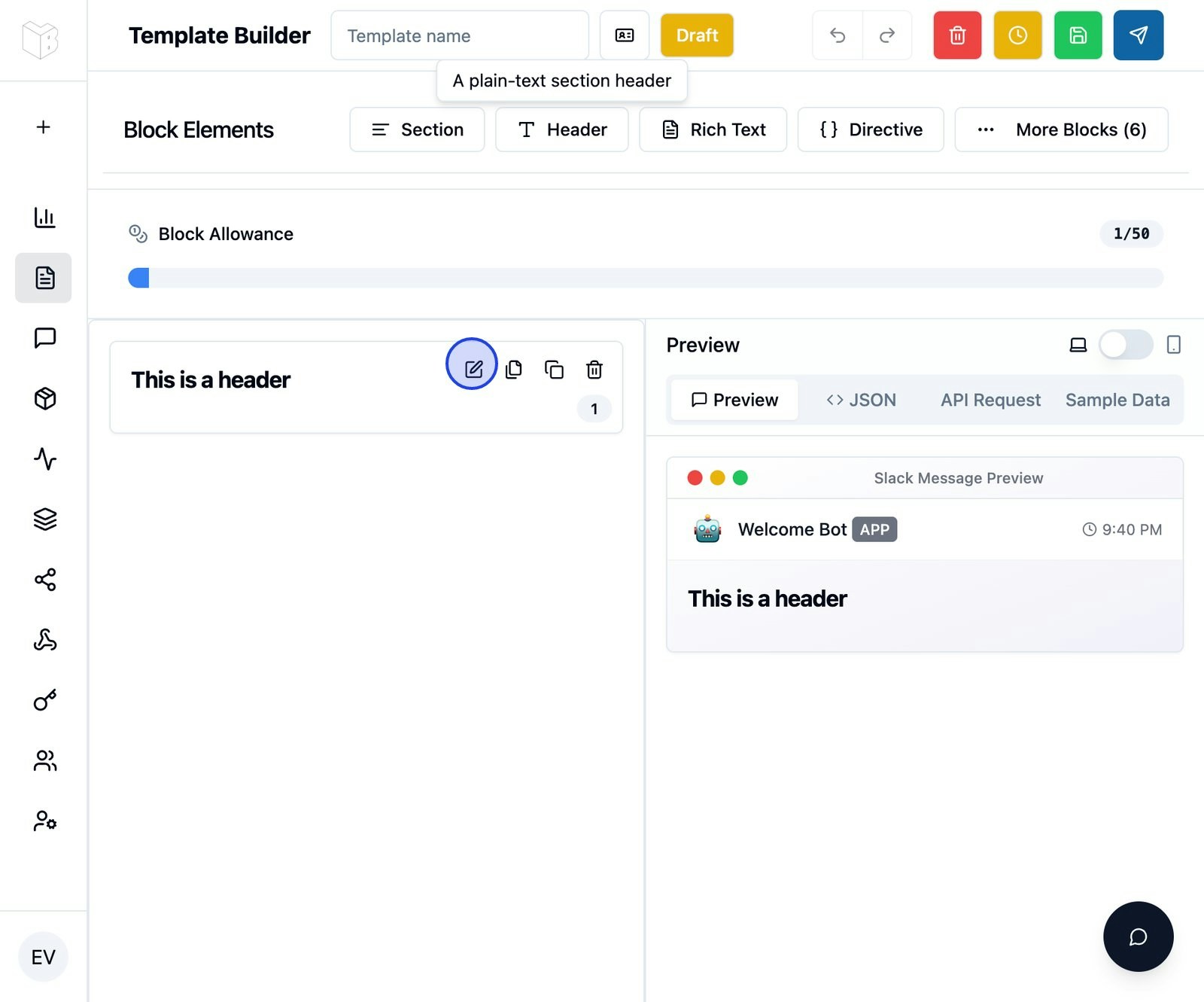
3
Add dynamic content with placeholders
- Click Section in the Block Toolbox
- In the text area, type:
{{user.name}} and {{user.role}} are placeholders — they’re replaced with actual data when you send the message.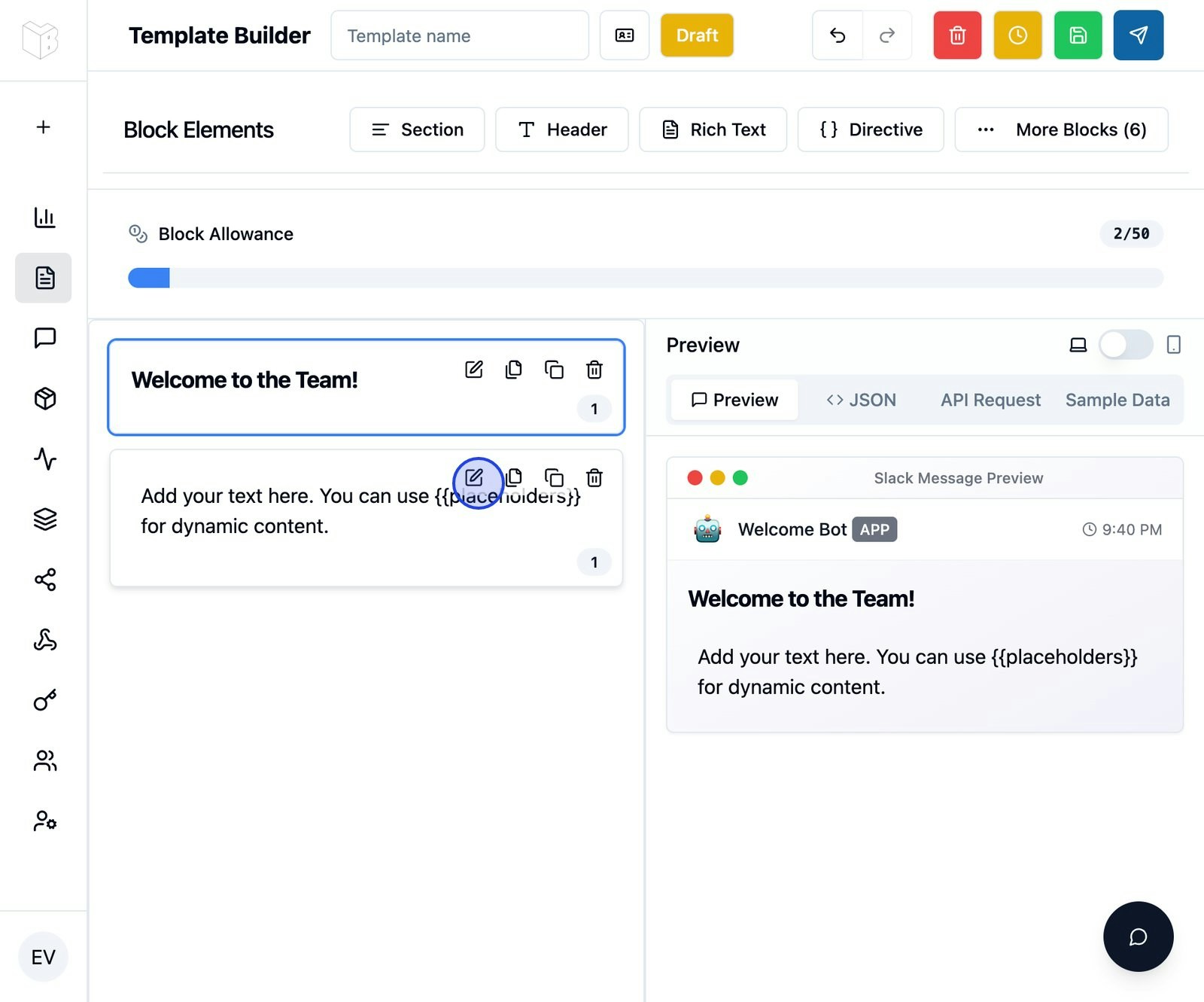
4
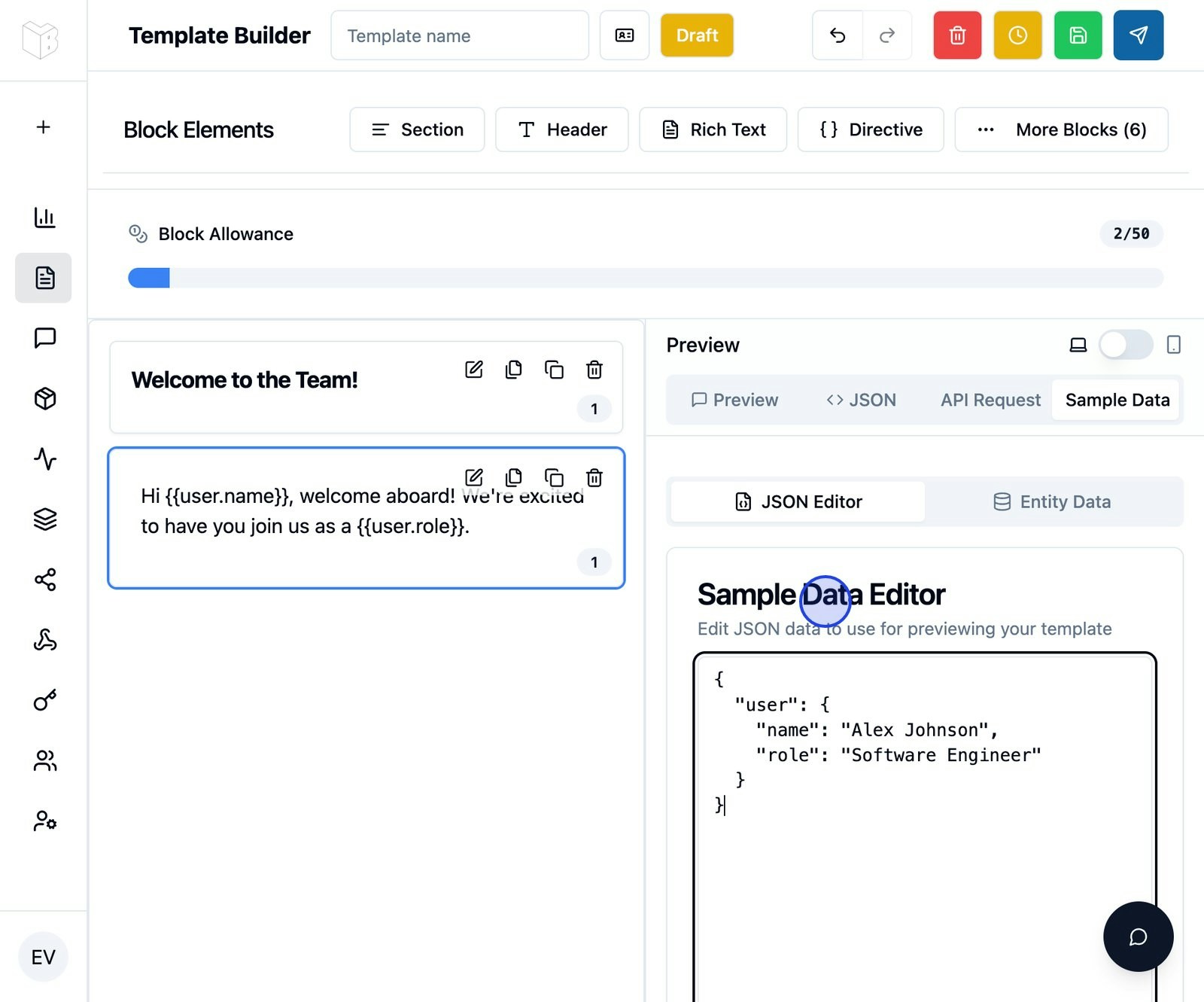
Add sample data for preview
- Click the Sample Data tab in the right panel
- Switch to JSON editor
- Add this sample data:
-
Click back to the Preview tab
5
Add a link button
- Add an Actions block.
- Set the button label to
Open handbookand its action ID toopen_handbook. - Set its URL to your team’s handbook (use
https://example.comfor this test). - Preview the button. No webhook is required for a link.
6
Save and send
- Click Save in the top right
- Click Send to Slack
- Select a channel or user
- The template is compiled with your sample data and sent
-
Check your Slack workspace for the message and click Open handbook to verify the URL.
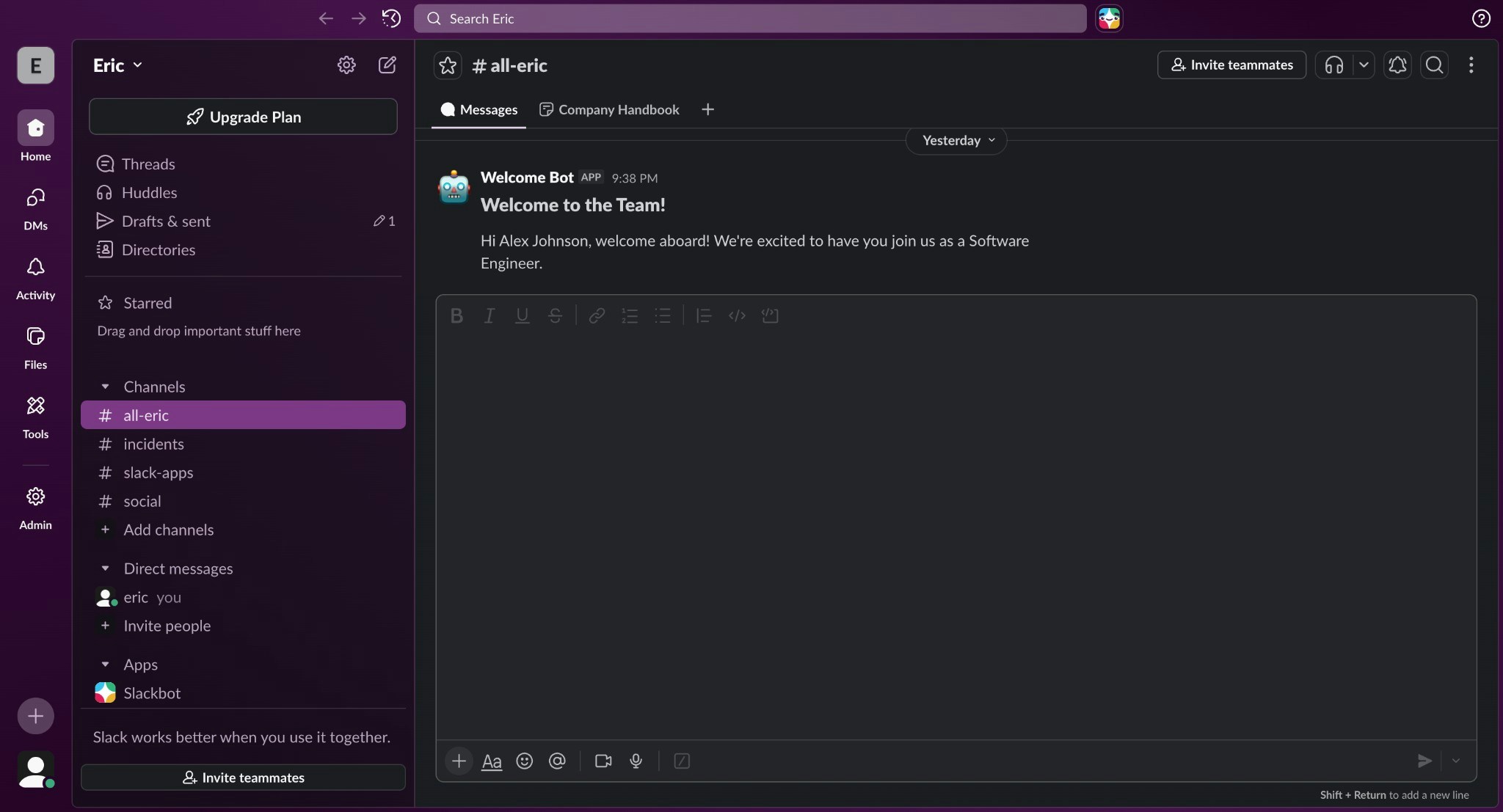
What you’ve built
You now have a template with:- Static content (header)
- Dynamic placeholders (user name and role)
- A link button that opens your handbook
- Sample data for testing
Next steps
Using placeholders
Learn advanced placeholder syntax for nested objects and arrays.
Block types
Explore all available block types.
Interactive buttons
Make buttons trigger webhooks or open modals.
Button webhooks
Connect buttons to external systems.
Common issues
Placeholders show as literal text (e.g. {{user.name}})
Placeholders show as literal text (e.g. {{user.name}})
Make sure you have sample data in the Sample Data tab that matches your placeholder structure.
Template compilation failed
Template compilation failed
Read the validation error and check the affected block. Missing text values remain visible as placeholders; they do not by themselves fail compilation. A directive whose source is not an array can fail.