

Watch the demo
Prerequisites
- A Slack workspace where you have permission to install apps
- Admin or owner permissions (or approval from an admin)
- An active organization in LithoBlocks
Connect your workspace
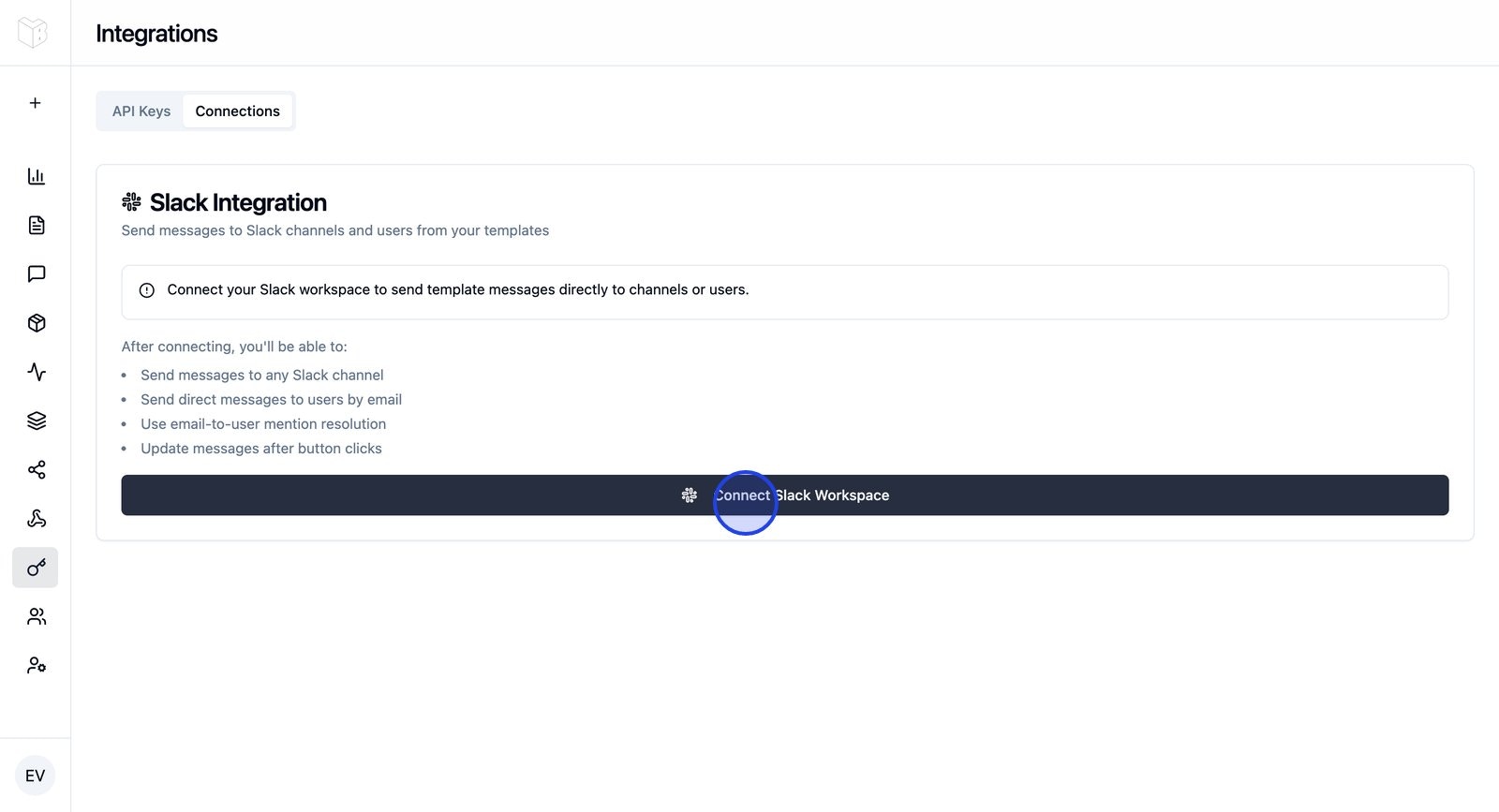
Step 1: Initiate connection
- Navigate to Integrations in the sidebar
- Find the Slack section
- Click Connect Slack Workspace
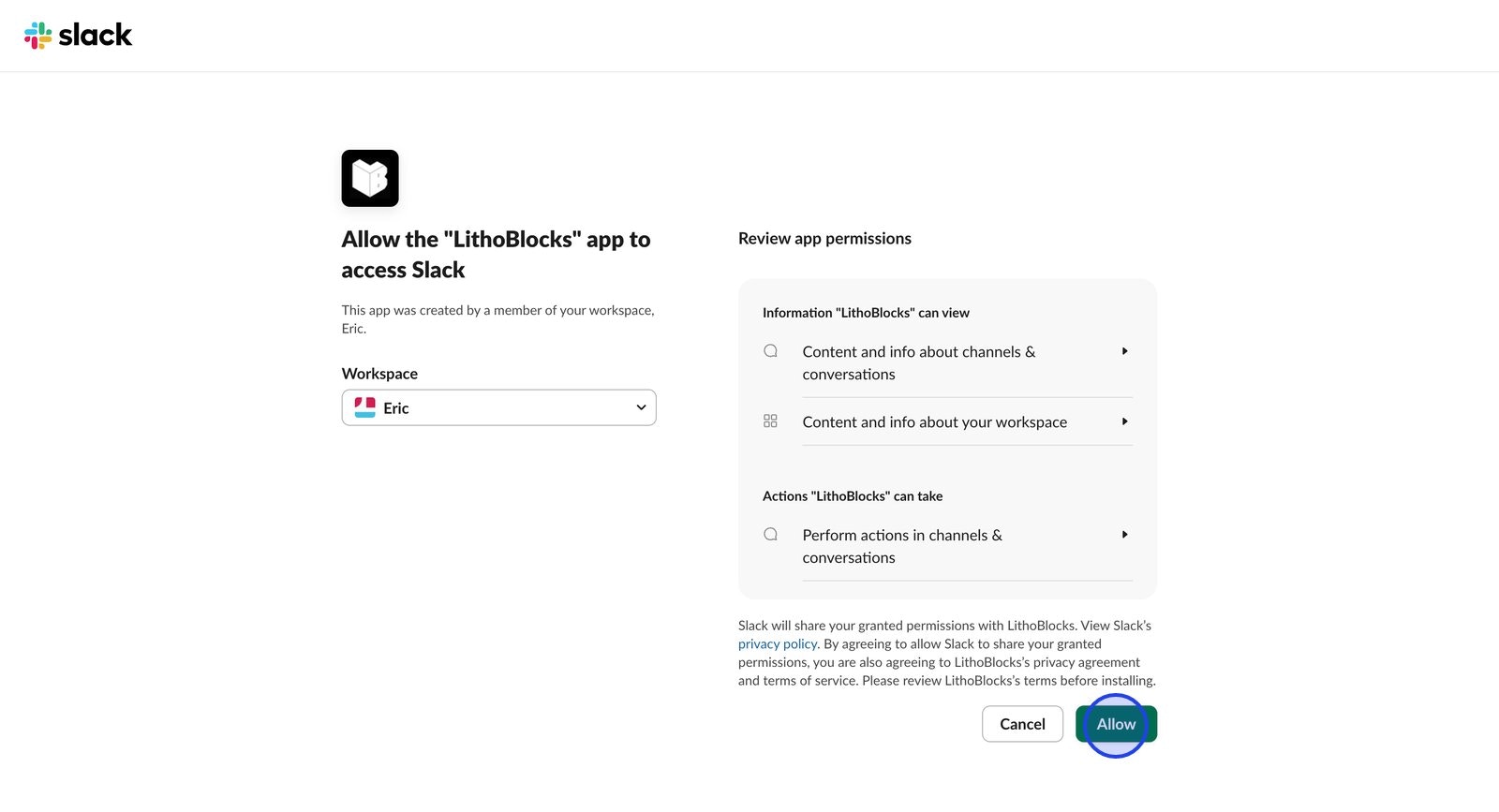
Step 2: Authorize
- Select your workspace from the dropdown (if you’re in multiple workspaces)
- Review the requested permissions
- Click Allow to grant access
Step 3: Confirm
After authorization you’ll be redirected back; your Slack connection will appear in Integrations with a success message.Required permissions
The connection’s consent screen lists the scopes requested by that Slack app version. The current manifest includes:
The retained channel, file, and trigger scopes are not prerequisites for the workflows in this guide. Existing installations can have a different granted set; reconnect when a feature reports a missing permission.
Some workspaces require admin approval for app installations. If you see “Request to Install,” workspace admins must approve before you can complete the connection.
Add the bot to channels
Channel access depends on the destination and the permissions granted to your installation. Public channels: An installation withchat:write.public can post without joining first. If your installation lacks that scope, invite the bot or reconnect with the current permissions.
Private channels: A channel member with permission to add apps must invite LithoBlocks. Knowing a private channel ID is not sufficient.
Direct messages: Use a Slack user ID or a resolvable email in the connected workspace. Workspace policies and account state can still prevent delivery.
Test your connection
- Go to Templates
- Select or create a template
- Click Send to Slack
- Choose a test channel or send to yourself
- Verify the message appears in Slack
Managing your connection
View connection details
In Integrations you can see workspace name, who connected it, when it was established, and status (Active or Inactive).Disconnect
- Go to Integrations
- Find your Slack connection
- Click Disconnect
- Confirm
Troubleshooting
Connection failed or OAuth returns error
Connection failed or OAuth returns error
Allow popups from the platform domain; try a different browser or network. Check with your workspace admin if restrictions apply.
Messages not sending
Messages not sending
Check connection status in Integrations, ensure the bot is in the target channel, and for DMs confirm the user is in the workspace. View detailed errors on the Usage page.
Next steps
Quickstart
Create your first template and send it to Slack.
Troubleshooting
Common issues and how to resolve them.