> ## Documentation Index
> Fetch the complete documentation index at: https://docs.lithoblocks.com/llms.txt
> Use this file to discover all available pages before exploring further.
# Connecting Slack
> Connect your Slack workspace to LithoBlocks, configure permissions, and manage your Slack connection.
Connect your Slack workspace so you can send templates and use interactive features like buttons and webhooks.
## Watch the demo
## Prerequisites
* A Slack workspace where you have permission to install apps
* Admin or owner permissions (or approval from an admin)
* An active organization in LithoBlocks
## Connect your workspace
### Step 1: Initiate connection
1. Navigate to **Integrations** in the sidebar
2. Find the Slack section
3. Click **Connect Slack Workspace**
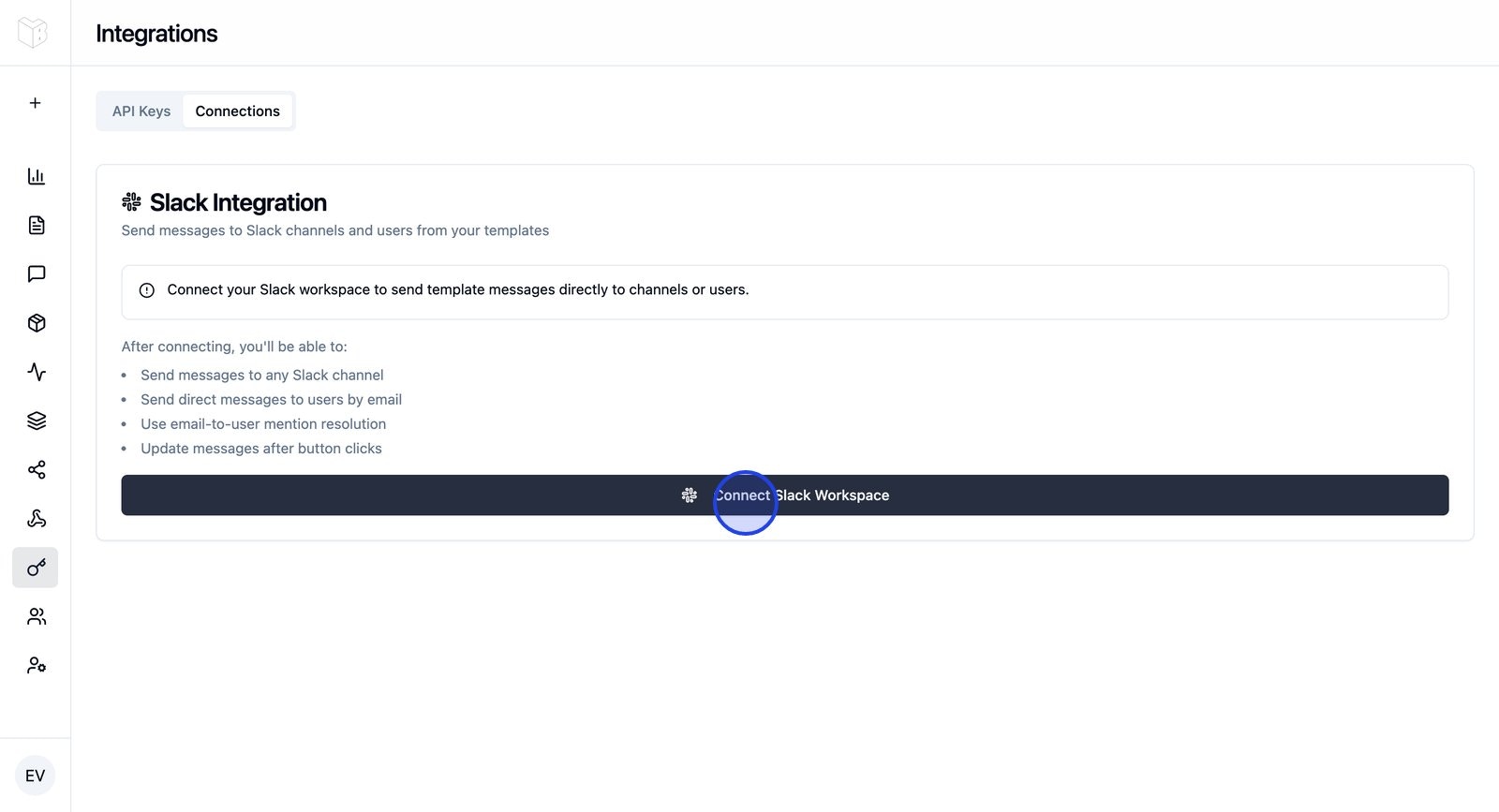 You'll be redirected to Slack's authorization page.
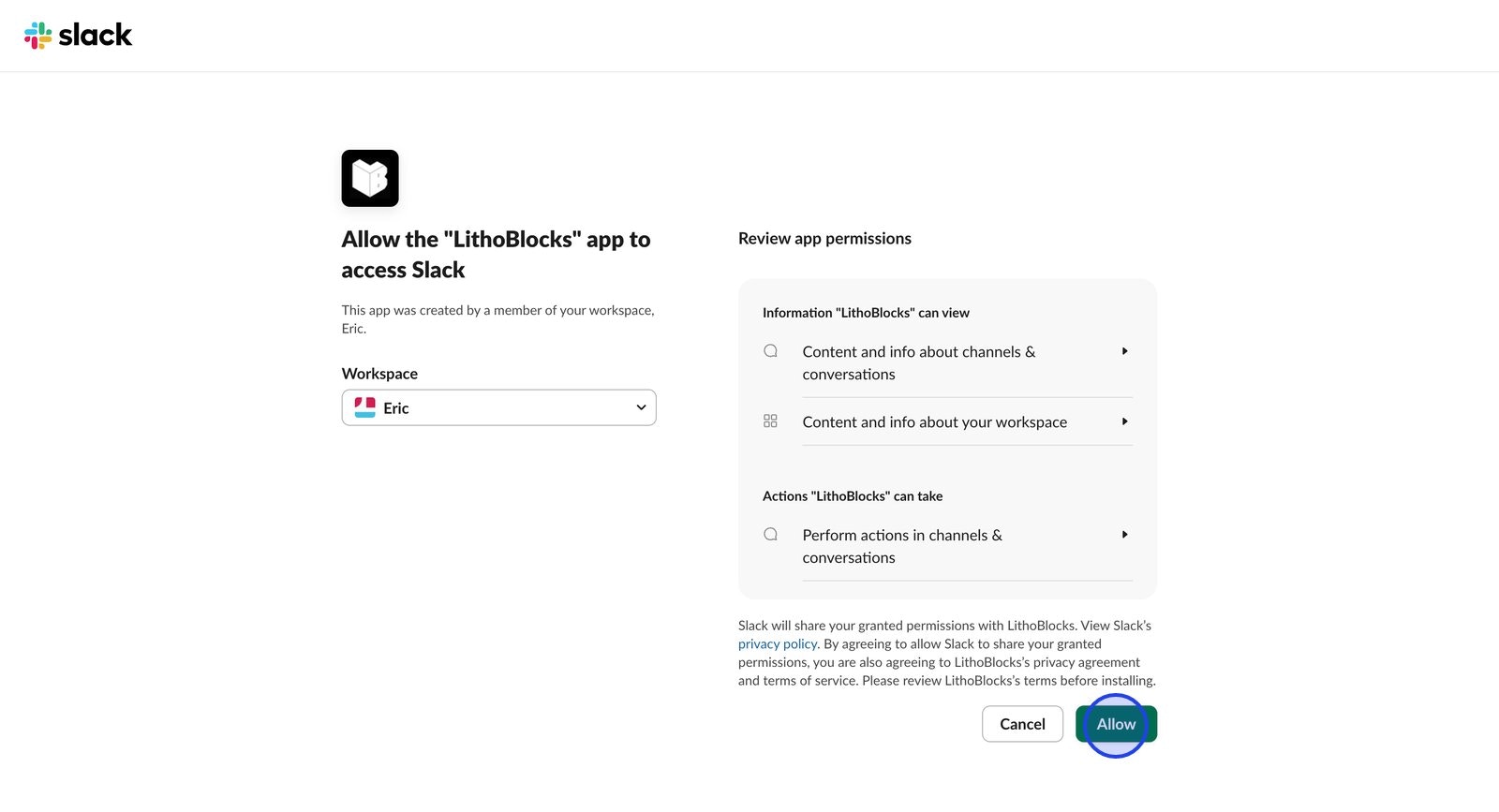
### Step 2: Authorize
1. Select your workspace from the dropdown (if you're in multiple workspaces)
2. Review the requested permissions
3. Click **Allow** to grant access
You'll be redirected to Slack's authorization page.
### Step 2: Authorize
1. Select your workspace from the dropdown (if you're in multiple workspaces)
2. Review the requested permissions
3. Click **Allow** to grant access
 ### Step 3: Confirm
After authorization you'll be redirected back; your Slack connection will appear in Integrations with a success message.
## Required permissions
The platform requests these Slack bot permissions:
| Permission | Purpose |
| ------------------ | ------------------------------------------ |
| `chat:write` | Send messages to channels and users |
| `users:read` | Look up users by email for direct messages |
| `users:read.email` | Resolve email addresses to Slack user IDs |
| `channels:read` | List and validate channel access |
| `groups:read` | Access private channel information |
| `im:write` | Send direct messages to users |
Some workspaces require admin approval for app installations. If you see "Request to Install," workspace admins must approve before you can complete the connection.
## Add the bot to channels
The bot must be in a channel to send messages there.
**Public channels:** In Slack, open the channel and run `/invite @lithoblocks`.
**Private channels:** The channel creator must invite the bot with `/invite @lithoblocks`.
**Direct messages:** No setup needed; the bot can send DMs to any workspace member.
## Test your connection
1. Go to **Templates**
2. Select or create a template
3. Click **Send to Slack**
4. Choose a test channel or send to yourself
5. Verify the message appears in Slack
## Managing your connection
### View connection details
In **Integrations** you can see workspace name, who connected it, when it was established, and status (Active or Inactive).
### Disconnect
1. Go to **Integrations**
2. Find your Slack connection
3. Click **Disconnect**
4. Confirm
Disconnecting will stop all message sending from templates and disable webhook interactions from existing messages. You can reconnect at any time.
## Troubleshooting
Allow popups from the platform domain; try a different browser or network. Check with your workspace admin if restrictions apply.
Check connection status in Integrations, ensure the bot is in the target channel, and for DMs confirm the user is in the workspace. View detailed errors on the Usage page.
Resend the message after ensuring the connection is active. Messages sent before the connection was established won't have working interactions.
## Next steps
Create your first template and send it to Slack.
Common issues and how to resolve them.
### Step 3: Confirm
After authorization you'll be redirected back; your Slack connection will appear in Integrations with a success message.
## Required permissions
The platform requests these Slack bot permissions:
| Permission | Purpose |
| ------------------ | ------------------------------------------ |
| `chat:write` | Send messages to channels and users |
| `users:read` | Look up users by email for direct messages |
| `users:read.email` | Resolve email addresses to Slack user IDs |
| `channels:read` | List and validate channel access |
| `groups:read` | Access private channel information |
| `im:write` | Send direct messages to users |
Some workspaces require admin approval for app installations. If you see "Request to Install," workspace admins must approve before you can complete the connection.
## Add the bot to channels
The bot must be in a channel to send messages there.
**Public channels:** In Slack, open the channel and run `/invite @lithoblocks`.
**Private channels:** The channel creator must invite the bot with `/invite @lithoblocks`.
**Direct messages:** No setup needed; the bot can send DMs to any workspace member.
## Test your connection
1. Go to **Templates**
2. Select or create a template
3. Click **Send to Slack**
4. Choose a test channel or send to yourself
5. Verify the message appears in Slack
## Managing your connection
### View connection details
In **Integrations** you can see workspace name, who connected it, when it was established, and status (Active or Inactive).
### Disconnect
1. Go to **Integrations**
2. Find your Slack connection
3. Click **Disconnect**
4. Confirm
Disconnecting will stop all message sending from templates and disable webhook interactions from existing messages. You can reconnect at any time.
## Troubleshooting
Allow popups from the platform domain; try a different browser or network. Check with your workspace admin if restrictions apply.
Check connection status in Integrations, ensure the bot is in the target channel, and for DMs confirm the user is in the workspace. View detailed errors on the Usage page.
Resend the message after ensuring the connection is active. Messages sent before the connection was established won't have working interactions.
## Next steps
Create your first template and send it to Slack.
Common issues and how to resolve them.